VirtualBox: Seamless Windows
I have one web based service provider that requires me to use Internet Explorer – Parcelforce; the courier firm.
I have been using IE running on Wine up until recently – but I had never got printing to work quite right. You see, when I schedule a shipment for something, their software creates a barcode and label in PDF for me to print. But their system needs me to have IE and the Windows version of Acrobat installed so the label pops up in an IE with the Acrobat Reader plugin window.
I have asked them to support Firefox and Linux but they didn’t even have the courtesy to reply to my email…
Anyway – Wine and IES4LINUX worked for me very well, but I have had to save the pdf file to disk then open the Linux version of Acrobat and print it from there. I have recently moved partitions around on my PC and am running a new install of Ubuntu, so I decided to try a different route for a change…
I installed VirtualBox (the latest .deb from their web site which is 1.52) on my Ubuntu Gutsy desktop and then dug out my old CD of Windows XP and started the install.
What a palaver that was! I had forgotten how laborious the install is: I have an XP “upgrade CD” so had to go and find my Full version of Windows 95, show it that, then type in the stupidly long code and answer lots of questions. And it seemed to take so long to actually copy the stuff to the VM. Then you get the Activation question, registration and lots of network activity…
However, once I’d got it installed, it booted up just fine (In fact it boots much faster in a VM than I recall it doing natively) . After installing VirtualBox’s “guest additions for Windows” you get an improved Windows graphics driver and better mouse control too. The mouse just works when you move the pointer over the VirtualBox guest window or back to the Linux desktop. No need to switch mouse control between the two OSes.
The other nice feature is something they call “Seamless Mode”. This is really cool, it means your guest OS can appear on your desktop without having to be inside a window. By that I mean you can run application (say notepad) and it will appear as a single window on your desktop. Here’s a picture to show you what I mean…
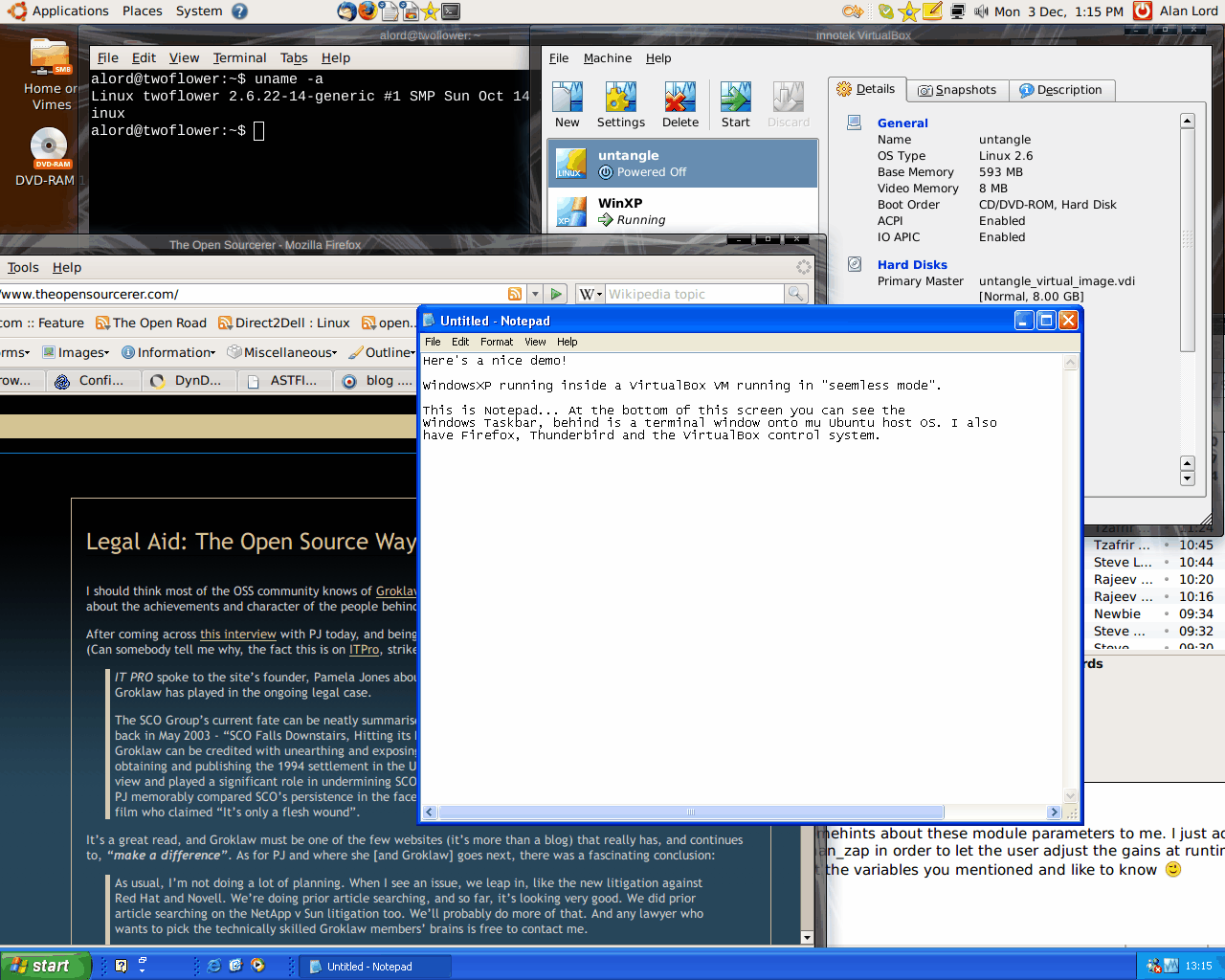
It’s a bit of a chore just to get access to a barcode label from ParcelForce, but I can do it. It only took me about an hour and I haven’t had to go and buy any software (I already owned my old copy of XP Home and Windows 95) or have to dual boot my computer.
The virtualisation engine is Open Source, the host OS is Open Source. And if Parcelforce would wake up and smell the coffee perhaps they might even keep a customer.
Tags: Ubuntu, VirtualBox, Windows


Hi Alan,
I just wanted to say that this is a great article! It’s very interesting and I will most certainly be checking out Virtual Box when time permits. In the short term, however, I thought perhaps I would tell everyone what I am currently doing to achieve the same thing.
Requirements:
Linux
Windows 2K,XP,V
Must be accessible via network
Mine is running as a guest virtual machine using VMWare
rdesktop >= 1.5.0 (http://www.rdesktop.org/)
Seamless RDP executable (http://www.cendio.com/seamlessrdp/)
Step 1:
On your windows computer, make sure that terminal services is enabled. This is different on 2K/XP/V so check the appropriate documentation for your Windows. I’m doing it on 2000 server and XP, so here’s each of those:
XP ~~~~~~~~~~~~~~~~~~
Right click on “My Computer”
Click on the “Remote” tab
Check the box that says “Allow users to connect remotely to this computer”
Open “Control Panel”
Open “Windows Firewall”
Click on the “Exceptions” tab
Make sure “Remote Desktop” is checked
Done
2000 Server ~~~~~~~~~
Open “Control Panel”
Open “Add Remove Programs”
Click on “Add Remove Windows Components”
Check “Terminal Services”
Complete the installation and insert the Windows CD if required (Tip: Copy contents of the install CD to the hard drive so you don’t need the CD as often)
Step 2:
On your Linux machine, install rdesktop >= 1.5.0 (which has seamless RDP capabilities). This is completely different for each distribution, so google [distro]+rdesktop+howto (replace [distro] with your distribution name redhat,mandriva,ubuntu,gentoo,etc) and see what you get.
Step 3:
Unzip the seamless RDP executable on your Windows computer. It can go anywhere, however, make sure you make a note of where you unzip it as it will be needed later. Personally, I like making the path as short as possible so I rename the executable. So c:/s.exe is probably what I would do (make sure all the files are unzipped to the same directory).
Step 4:
Obtain the IP address of the windows machine (this assumes that the Windows machine’s RDP port is accessible via a network connection from your Linux machine).
Click “Start”
Click “Run”
Type “cmd”
Type “ipconfig”
Make a note of the IP Address
Step 5:
On the Linux computer, open xterm or some other terminal application and enter the following line making replacements where required:
rdesktop -A -u [username] -p [password] -s “c:\s.exe notepad” [windows ip]
Which, if all went to plan, should launch notepad with no Linux window decorations. Depending on the window manager, this window can be resized, minimized, maximized, whatever. I use fluxbox for a window manager and can use my own shortcuts to move the window easily through all my desktops and organize them with a single shortcut, etc. Gnome has some nice shortcuts too that enable you to move the windows through your desktops also. Not sure about KDE, Enlightenment, etc.
Below are some nifty examples of command lines you can do to launch certain things:
SQL Enterprise Manager
rdesktop -A -u [username] -p [password] -s “c:\s.exe mmc c:\progra~1\micros~3\80\tools\binn\sqlser~1.msc” [windows ip]
IIS
rdesktop -A -u [username] -p [password] -s “c:\s.exe mmc c:\winnt\System32\inetsrv\iis.msc” [windows ip]
IE
rdesktop -A -u [username] -p [password] -s “c:\s.exe c:\progra~1\intern~1\iexplore.exe” [windows ip]
Have fun and great article!
Forgot to mention that you can also enable XP machines to allow more than one RDP session at a time 😀
http://www.golod.com/2005/10/enabling-multiple-remote-desktop-sessions-in-windows-xp-professional-and-media-center-edition-2005/
http://sig9.com/articles/concurrent-remote-desktop
http://riccardo.raneri.it/blog/eng/index.php/2006/04/24/windows-xp-multiuser-remote-desktop/
http://blandname.com/2006/09/19/running-terminal-services-on-windows-xp/
Enjoy!
I’m sure someone will find your post interesting. Thanks. Not really using M$ any more my vision went all blurry over the Microsoft stuff…
The other way round is cool too. When I used to use Windows on my desktop I used a great little X for Windows app called XMing (http://www.straightrunning.com/XmingNotes/). Works a treat if you want to get at your server/other linux boxes. Oh yes, it’s free and Open Source too!
Al
Cool Alan,
I’ll check out xming and see what kind of benefits it offers over the RDP method. I’m right there with ya as far as the blurring caused by M$ and wish it wasn’t necessary to use it at all. Lucky me, I get to work on Windows 2000 servers for work! 😀 If VNC offered some type of seamless capabilities, I would gladly use that instead of the closed RDP protocol, especially with the limitation of 16 bit color depths for 2K server.
I’ve been trying more recently to use ssh -> windows as much as possible so I can just jump in, type a command (tsdiscon 1 /v) and then bound back out as fast as possible. Kind of fun learning the commands for some of the operations and good ol’ pstools makes it quite a bit easier to accomplish the tasks required.
Thanks again for all the tips Alan,
Have a Microsoftastic day 🙂
There is a strong shift to a hybrid system as many are now adopting linux for security and stability with guest windoze when forced for legacy 🙂
Anyway im running Ubuntu gutsy with guest win 2k pro setup bound by the wonderful VirtualBox made installation very smooth and simple. Just remember to reboot to add VB kernal and make sure you go to users permission GUI in ubuntu and scroll down and add yourself to the VB allowed list otherwise you cant get into the the box. Add VB additions will whisk your win2k drivers from 16 bit color to 32bit to any size your native card can support. The seamless integration mode is great. The mouse runs directly from ubuntu control direct into windows screen its quite bizarre.
Its quite odd to see windows media player sat in the middle of ubuntu desktop even though its not something i would actually use in this way but makes a nice demonstration. In fact the time to get to 1st win2k welcome screen was just 34 mins but then required 8 years of upgrades and security patches!! This took me about another 2 hours of loading,booting the win box to get it up to date and tweaked to my settings. However i STRONGLY recommend win2k for VirtualBox compared to winXP because win2k is lighter and so much fast and will run on just 128k of ram versus XP struggles on 512k and really needs at least a gig to run a guest setup. It no myth win2k outperforms 8 outta 10 benchmarks against XP and flies in the face of over bloated Vista except on the fastest machines with gigs of ram.
Unfortunately with several bits of windows software i need/love then this is my perfect solution and no WINE just doest cut it for several apps including several of the p2p TV apps which need windows player 9,10,11 or they wont run.
[…] engine which sits very well on top of my Linux desktops and servers. For example, it enables us to run the dreaded Windows inside a secure cage on our safe and sound Linux infrastructure. For when we need to do integration […]
Hi
I want to run windows in Ubuntu, using Virtualbox
Is windows virus free when running in Linux, do I partion my hard drive ( say 50/50)?
Regurds Bert
Hi H Todd (Bert),
Windows is NEVER virus free. However, running it inside a VM does mean that it can’t damage the rest of your host. Of course it may well propagate over the LAN but hey-hum.
You do not need to create partitions. VirtualBox Virtual Machines are actually just a single, albeit large, file with a .vdi extension.
[…] Virtualbox You can put Virtualbox in the same range as Vmware. They provide a performant virtualization platform. Yet one of their core features (which I still miss in Vmware, apart from Fusion) is the “seamless” mode. It means your guest OS can appear on your desktop without having to be inside a window. You can run application (say notepad) and it will appear as a single window on your desktop. More info? […]
[…] it a fox. He used the VirtualBox application to install Windows XP inside of Ubuntu and is running VirtualBox in seamless mode so that the Windows windows just live alongside the Ubuntu windows. Note the XP taskbar at the […]
I have tried to setup MS XP running under Ubuntu on a webbook for it will not load.
Have setup VirtualBox do you run the install from within the VirtualBox or from bootup?
I have a USB DVD Drive connected to the webbook. Which is not mounted from info in VirtualBox. If I minimise and double click on the CD and then double click on setup, it goes to gathering information and just seems to sit there. Pressing “ESC” does not seem to break into the install.
Any help please.
Rgds
@Norman
thanks for the comment.
With VirtualBox, once you create the Machine using the wizard, you need to point the wizard to either a physical CD with the installation media (difficult with a webbook) or to an ISO file on the file system.
If you can copy your Windows XP CD onto a computer as a plain iso file and then move that to the webbook, then you use the CD/DVD rom settings dialogue and choose the “ISO image file” option. Point this to your iso file then strat the VM. It will run through the Windows install routing, just as if you had booted a PC from the CD.
Hope this helps.
Alan
Alan.
I think I have created and ISO directory on a Flash Memory Stick.
The directory has all the files and sub directories.
This what I have managed to get setup in CD\DVD – ROM
Mount CD\DVD Drive (check box blank)
Host CD\DVD Drive
Enable Passthrough
ISO Image File
File SETUP.EXE(/media/MightyDrive/XP Prp ISO(H))
EVery think under Mount is greyed out.
Should I be able to install this way ?
I have not used Linux only MS. If I have to copy from the memory stick, how do I do it so that I can install XP. Or could you point me to info that I can follow.
Rgds
Hi Norman,
having re-read your original post, and as you have a USB DVD Drive you should simply be able to mount the ISO directly from your USB drive in VirtualBox.
Rather than copying the “contents” of the WinXP CD (which isn’t actually what you need. You need to copy the whole CD image as a true “ISO” file) connect the DVD drive before starting up the VirtualBox manager. Then you should be able to mount it from the “Mount CD/DVD Drive” option. Once you have selected it, when you start the Virtual Machine, it should just use the CD as normal.
I didn’t realise (not having used Windows for quite some time now) how hard it is to actually create an ISO image from a physical CD in Windows! I just did a quick google and it seems you actually need a special tool to do it (in Linux it is easy). Anyway, I came across this page (http://isorecorder.alexfeinman.com/v1.htm) which may, or may not, help if you need to get make an ISO file from your CD on your Windows PC and then copy it across to the webbook. But you should just be able to use your external DVD Drive as I mentioned above.
I’m going to be out of the office for a couple of days now, I will check in occasionally and respond when I can but it might not be for a day or two (so please don’t be offended if I don’t reply immediately). Of course other viewers might be able to help here too.
Alan
Alan.
Thanks for your help.
Partly my fault I had not set my user id in VirtualBox as I assumed it was already done when I added my user id on the startup of the webbook.
One done I could use the original MS XP Pro disc.
Now I need to find how to shrink the screen so I can see the task bar at the bottom of XP. The screen I think and I need to check on webbook is 1076×600, also I drivers I got to use with XP will not load this may be because they are for a standard install on a webbook and not running in a virtual window.
Should I load a virus software to XP ?
Rgds
Norman
Hi Norman,
Yes, the webbook’s screen is 1024×600. Here’s a trick though; if you hold down the “alt” key and then click “anywhere” on a window, you can drag that window so the edges go “outside” of the visible screen. So you could drag the window up further so the taskbar at the bottom is visible.
I run an XP VM in VirtualBox for testing purposes sometimes and have not had any problems with drivers. I can’t recall what graphics hardware VirtualBox emulates but it is a *very* common device as is the networking interfaces for example. I don’t recall having to install any extra drivers for my XP VM at all.
I would recommend installing the “Guest Additions” though. This gives much better mouse control, shared folder support and the ability to run Windows apps in seamless mode, and, I think it might help with the resolution issue too.
Cheers
Alan
I’ve extended VirtualBox to open Word files in a Window Xp Virtual Machine. This method can be generalised to open any file type using Window’s default application. I note the above blog opens files using RDesktop, but this provides an alternative method without RDesktop.
For more info, see:
http://www.pjlnash.co.uk/blog/?p=39